Key Note: The configuration program cannot be run when the Rose Engine Butler program is running. It is designed so that you configure the way Rose Engine Butler works, then run the system.
Basic Settings
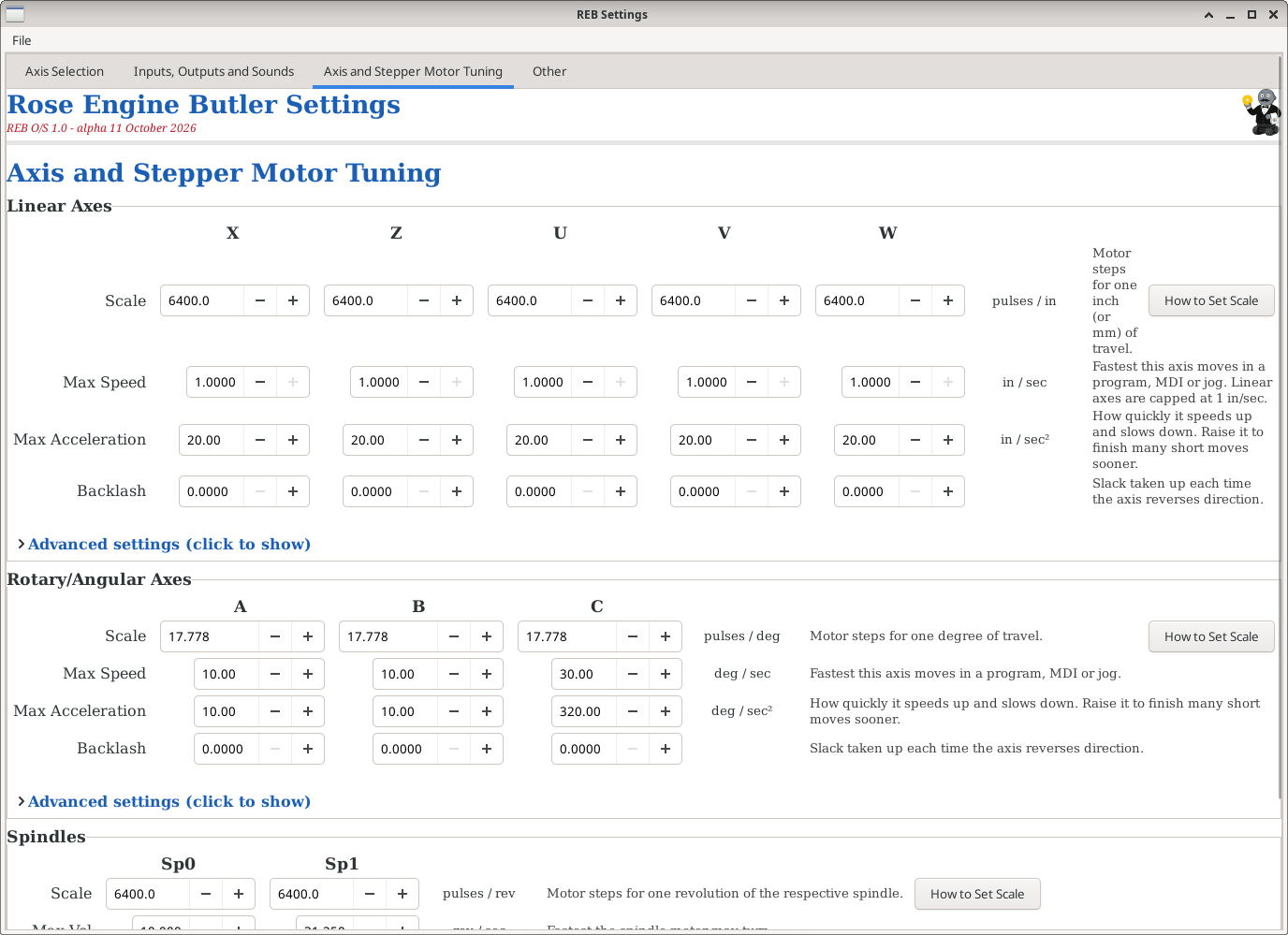
There are a number of values set for each axis on this screen. There are fields for setting the scales for all axes, including the ones not being currently used. The only ones used are the values for the axes being used.
| Scale
| This represents the number of pulses which must be sent to the stepper motor to achieve the desired movement. For example, in the screen to the right, 57,600.0 pulses are required for the Sp0 spindle to revolve 360°. There is more, in-depth information at Scale Settings for a Device.
| Scale and Max Speed are inter-related. Thusly, when a value is entered for either, a calculation is performed to ensure that a value has not been entered which is too large (which would trigger an error in LinuxCNC).
|
| Max Speed
| This represents the maximum velocity for the respective axis. Do note, this is measured in distance per second. Thusly, 0.167 revolutions / second = 10 revolutions per minute.
|
| Max Acceleration
| This represents the maximum acceleration for the respective axis. Do note, this is measured in distance per second2.
| No calculation is performed to ensure the entered value is proper.
|
| Backlash
| Backlash compensation. Distance the mechanism can move, after reversing direction, before mechanical slack (leadscrew/gear play) is taken up and real motion resumes. Set to the measured lost motion for this axis; 0 disables compensation.
| No calculation is performed to ensure the entered value is proper.
|
Advanced Settings
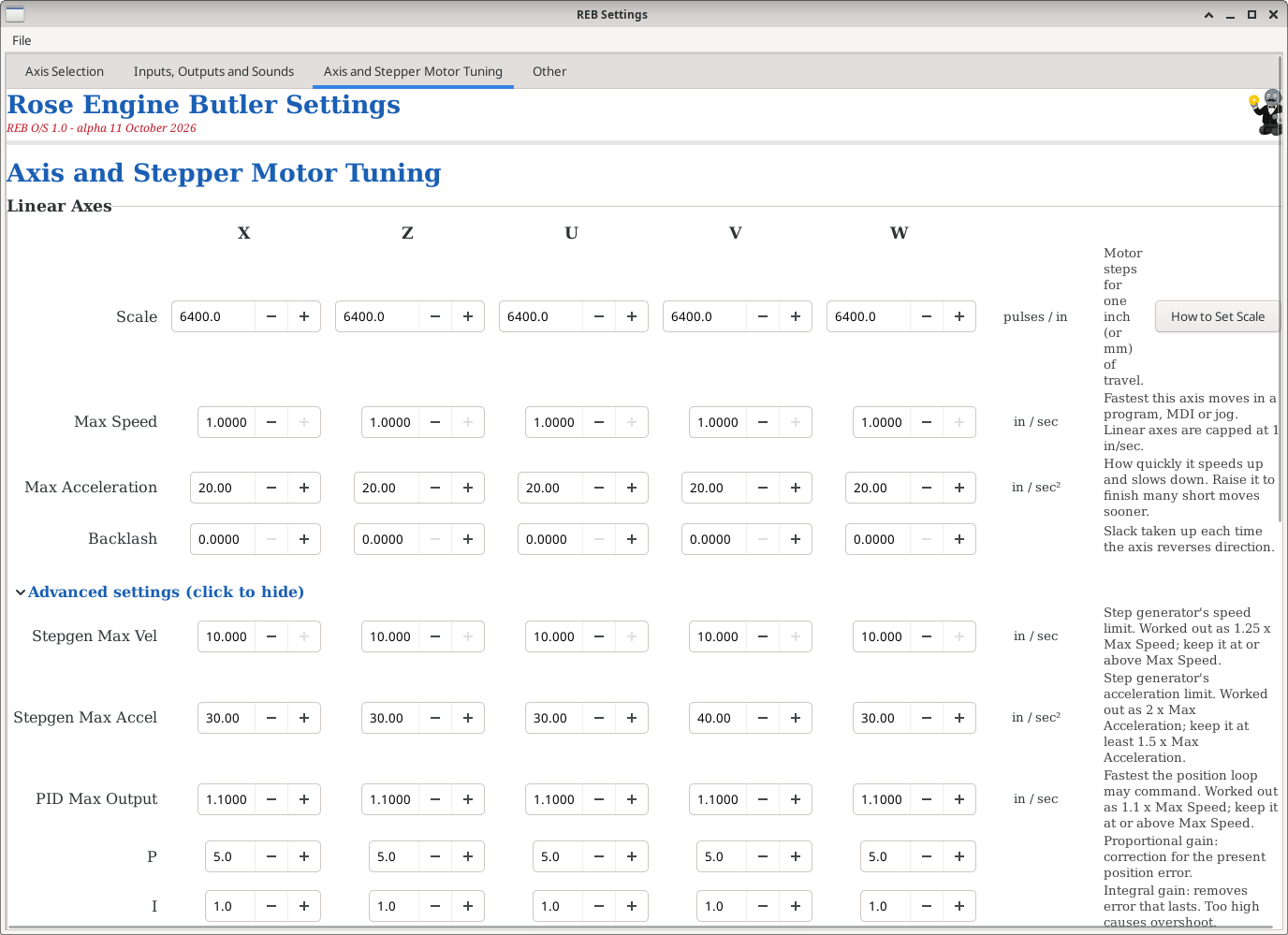
There are also advanced settings available if you click on the twistie. An example is shown below for the Linear axes.
The fields are explained in the comments to the right of each field. The links below may also be useful.
Notes:
- There are fields for setting the scales for all axes, including the ones not being currently used. The only ones used are for the axes being used.
- More information is available at:
- These are saved when you click Save All Settings at the bottom of the Axis Selection tab. If you close the Settings program with changes that haven't been saved, it asks whether to save them first. (Backlash is saved as soon as you change it.) See Saving and Sharing Settings.
- This panel is bigger than the screen. Scroll with the mouse wheel, or use the bar on the right side of this panel.
Running the Rose Engine Butler Settings Program
To access the Rose Engine Butler Settings program, there are 3 options:
Option 1: Use the icon on the desktop
Double-click on the Rose Engine Butler Settings icon on the desktop (the big gear)
Option 2: Use the Applications menu
- Click on Applications at the top left corner of the screen
- Click on the arrow to the right of Rose Engine Butler
- Click on Rose Engine Butler Settings (the one with a gear)
| Applications
|
 Rose Engine Butler > Rose Engine Butler >
| Rose Engine Butler
|
 Rose Engine Butler Settings Rose Engine Butler Settings
|
 Backup Rose Engine Butler Backup Rose Engine Butler
|
 Update Rose Engine Butler Update Rose Engine Butler
|
Option 3: Run the command directly
Run this command from a terminal window:
|
bash /home/reuben/linuxcnc/configs/RoseEngineButler/REB_Settings.sh
|
########## Standard Footer for all pages ##########