
Running Gcode Programs
With LinuxCNC, you can download a Gcode program from the Rose Engine Butler Gcode library (gcode.roseenginebutler.com) and run that, or run a Gcode program you created.
In either case, we recommend you store the programs in the directory already setup:
| /home/reuben/linuxcnc/configs/RoseEngineButler/gcode/ |
Storing them here will ensure the backup program will copy them to a USB flash drive.
The Gcode files for LinuxCNC have a file type of .ngc.
Editing a Gcode program
Thunar
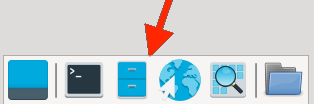
Thunar
You can list all the programs in the directory noted above using the file manager, Thunar. The easiest way to start using Thunar is hover your mouse at the bottom middle of the screen. When the bar pops up, click on the icon which looks like a file cabinet.
Once Thunar is started, you can use the icons on the left side of the screen for Places, navigate to where the Gcode programs are stored. Click on Home then navigate down to
| /home/reuben/linuxcnc/configs/RoseEngineButler/gcode/ |
Alternatively, you can enter the directory in the location field (at the top of the screen) directly by entering the location noted above.

Geany
Then, on the one you wish to edit, right-click on it with your mouse, and choose the editor you wish to use. One editor included with the system is Geany, but you could install a different one if you prefer.
|
|
Running a Gcode program
To run a Gcode program, LinuxCNC must be in a started mode②.
- Press the O button① on the keyboard to open the program, or
- Click on File on the top menu bar, then
- Click on Open
- Navigate to the directory where the program is stored. Usually, this is
| /home/reuben/linuxcnc/configs/RoseEngineButler/gcode/ |
- Click on the Gcode program you wish to run, and click the Open button. After opening the file, the image on the Preview tab should be updated to show a simulation of the movement path. This is an approximation, but may be useful for you.
- You may notice an error. For example, if the Gcode program is expecting to use the B axis but you do not have your system configured to use the B axis, this will generate an error.
- You will have to correct any errors for LinuxCNC to load the Gcode program.
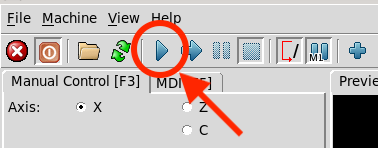
Gcode Go Button
- Press the R button① on the keyboard to run the program, or click on the Go button. This is the one shown in the image to the right.
- If you prefer to step the Gcode program one step at a time, either press the T button①, or use the button to the right of the Go button. If you experience errors with what is happening, this may be useful for you.
|
|
Using AI to create a Gcode program
The Claude code program was installed on the Rose Engine Butler system. To use it, on the Raspberry Pi, you will need a Claude coding license which is typically included in the Pro plan, but not the free plan. The free plan level can be used on a web browser to do similar work.
Other AI programs may also work; however, we have not tested those.
|
|
Notes
- Using either upper case or lower case letters for this is acceptable.
- If an error is encountered, LinuxCNC will usually power off. You will have to power on (F2) again to resume operations.
| spacer line |
|
eMail comments to |